Automatically import your Ticketmatic events and sell them through your website.
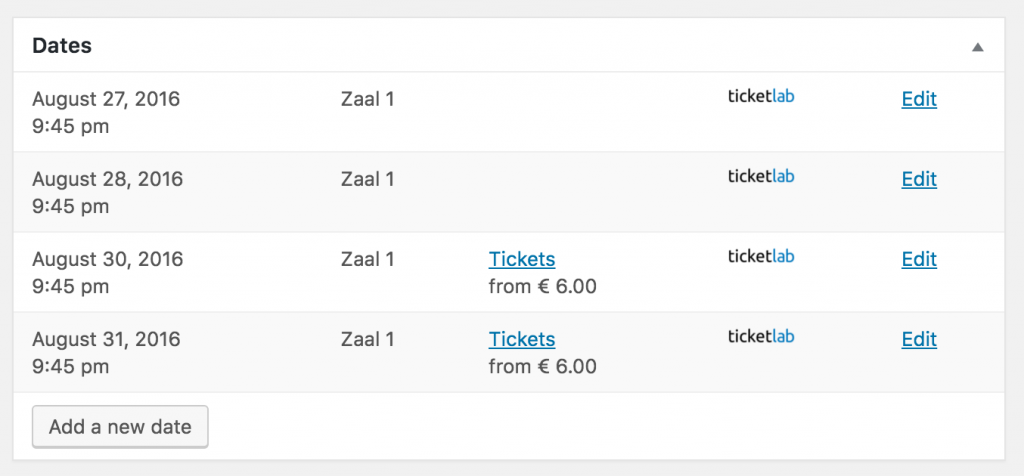
This extension to the Theater for WordPress plugin automatically imports your events from Ticketmatic and shows them on your website. You can add additional information like texts or images directly inside WordPress. Tickets sales happen inside the default payment screens of Ticketmatic.
Automatically sync your events with the Z-Tickets ticketing platform and sell them on your WordPress website.
With this extension to the Theater for WordPress plugin your Z-Tickets events are directly added to your WordPress website. Ticket sales takes place in the online ticket shop of Z-Tickets.
Installation
Install the free Theater for WordPress plugin.
Install the Z-Tickets for WordPress plugin.
Enter your TicketSource credentials on theZ-Tickets tab in the Theater for WordPress settings and choose an interval for synchronisation (eg. 5 minutes).
Automatically sync your films with the Chaplin ticketing system by Nutid AB and sell them on your WordPress website.
With this extension to the Theater for WordPress plugin your Chaplin films and their promotional information are directly added to your WordPress website. Ticket sales takes place in the online ticket shop of Chaplin.
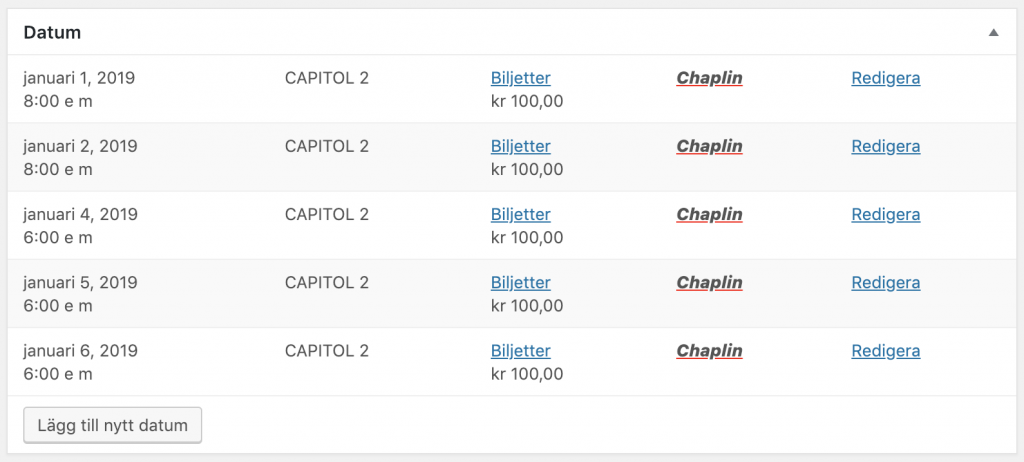
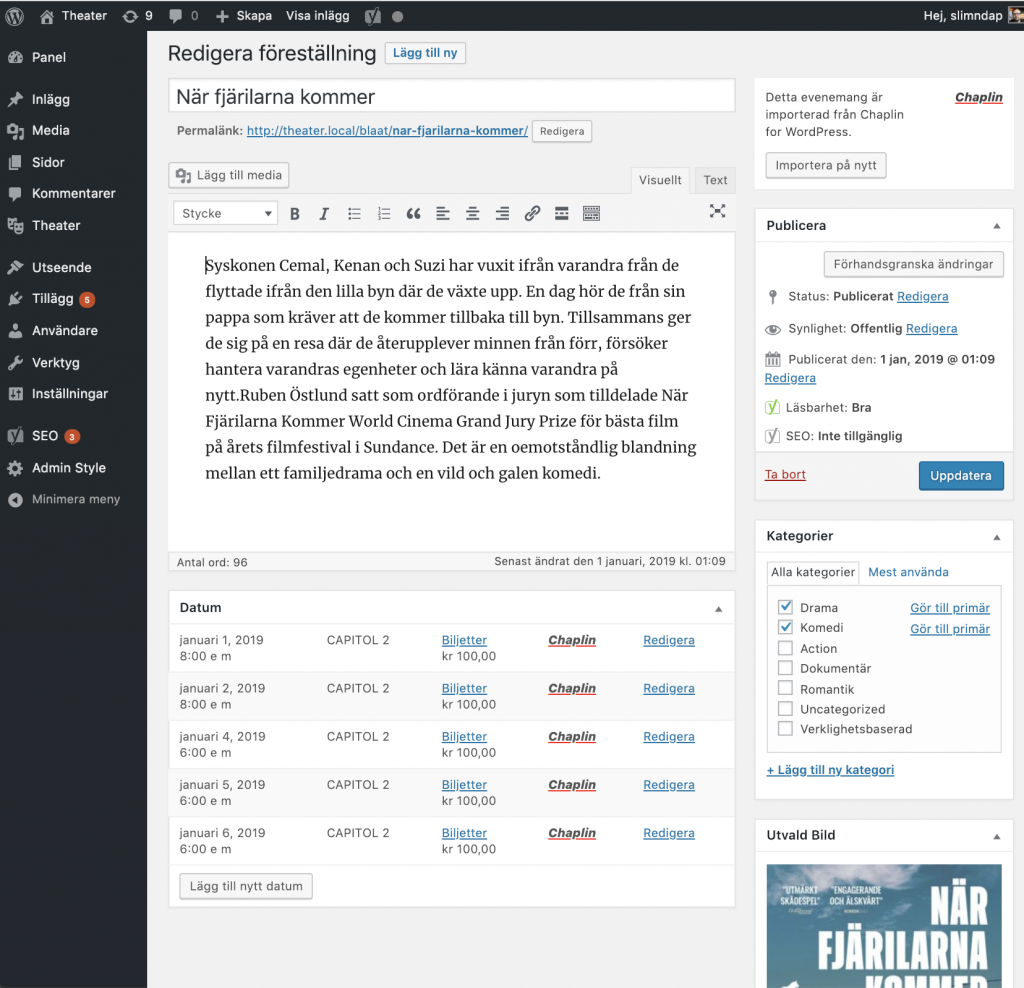
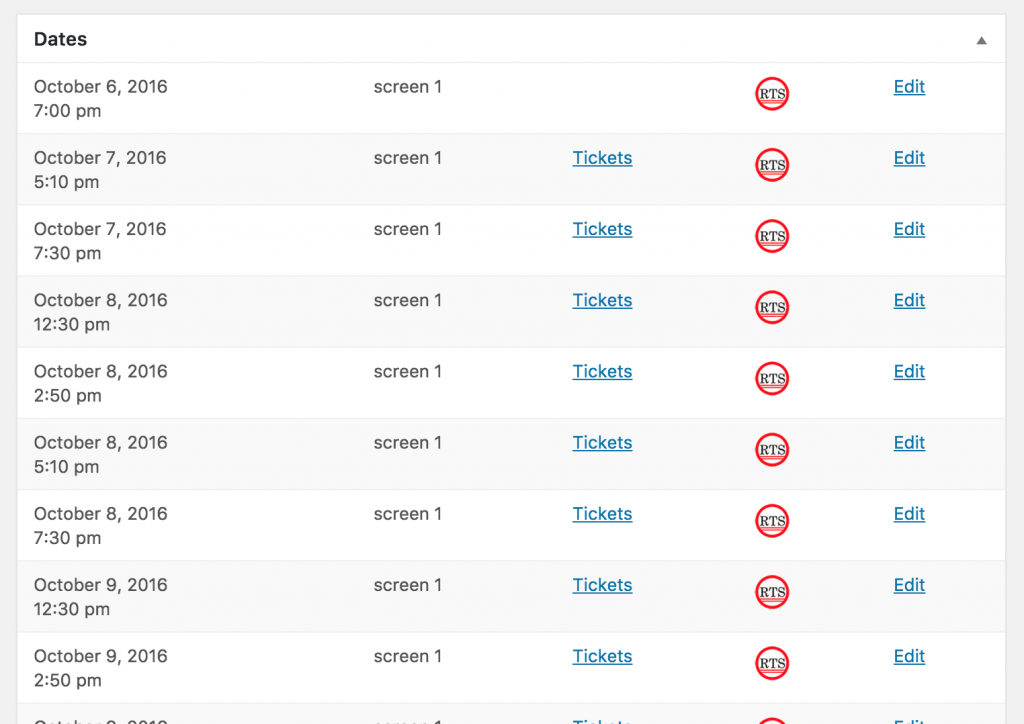
Your films are automatically imported from Chaplin
Enter the TRS-API settings that were provided by your LVP contact.
Select an import schedule.
Save your settings.
Go to Theater → Events.
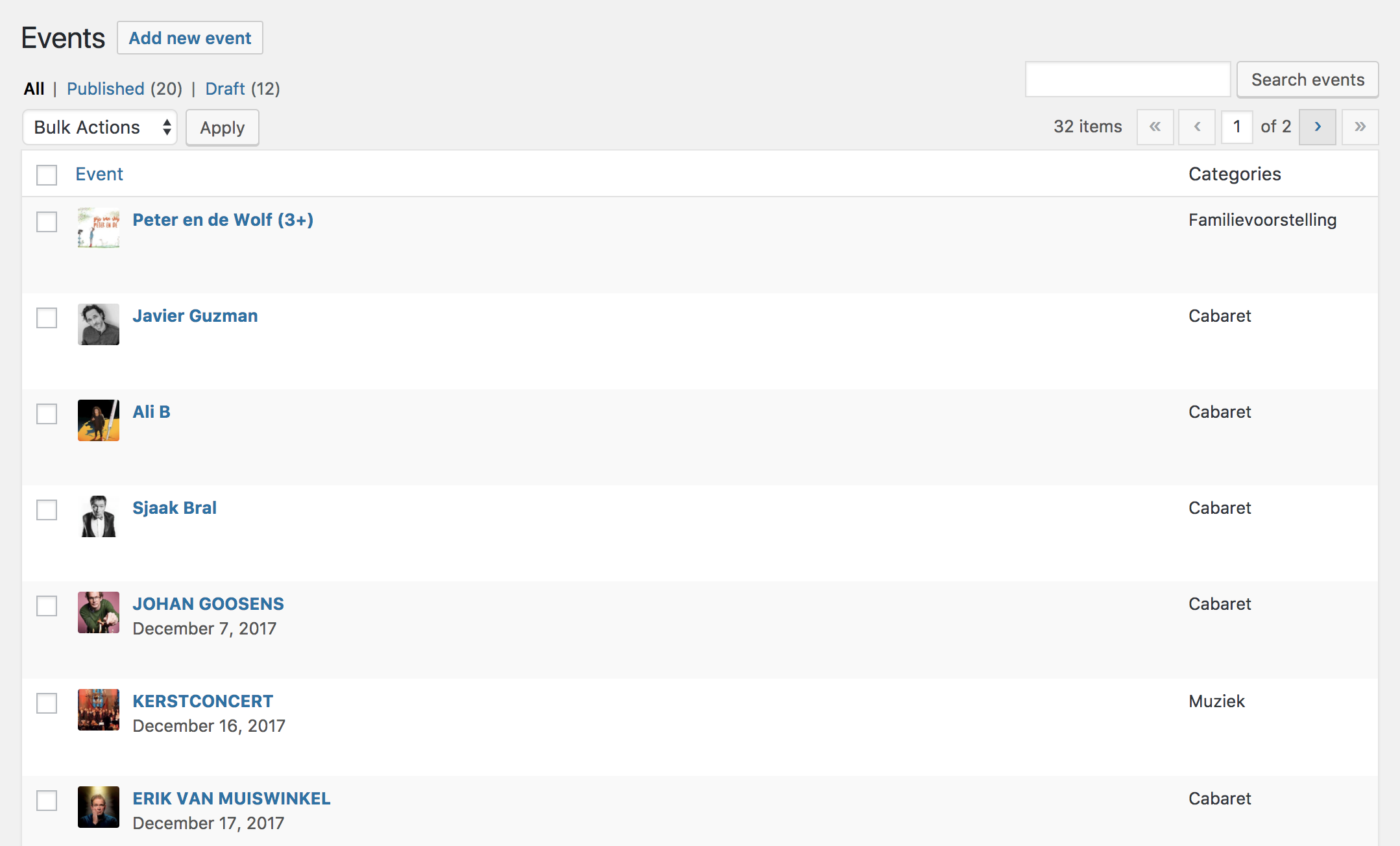
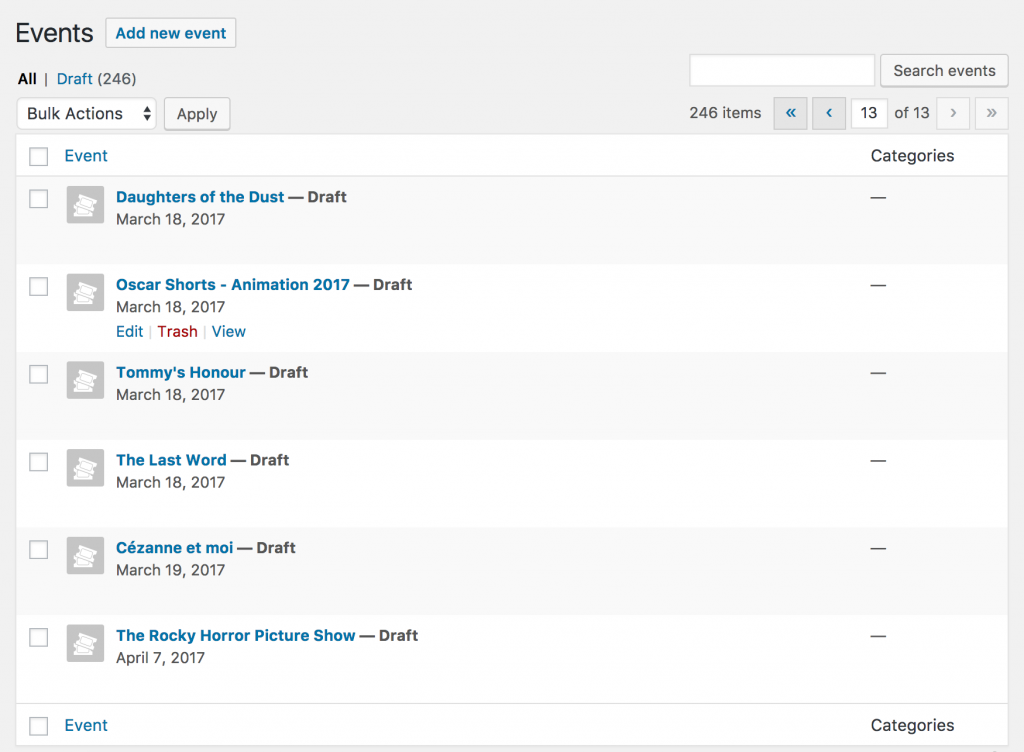
You now see an overview of all your events:
At this point, all your events are still saved as drafts. You can now edit your events, add extra information (eg. a new featured image, video trailers of reviews) and publish them.
Show your events
You can show your upcoming events on a page.
Go to Pages → Add new.
Give your page a title (eg. ‘Upcoming events’).
Click on Publish.
Go to Theater → Settings → Display.
Set Page to show upcoming events on to the page that you just created.
Set Position on page to show above content.
Scroll down to the Dates on event pages section.
Set Position on page to show above content over here as well.
Click on Save Changes.
Go to Theater → Settings → Style.
Check Enable built-in Theater stylesheet.
Click on Save Changes.
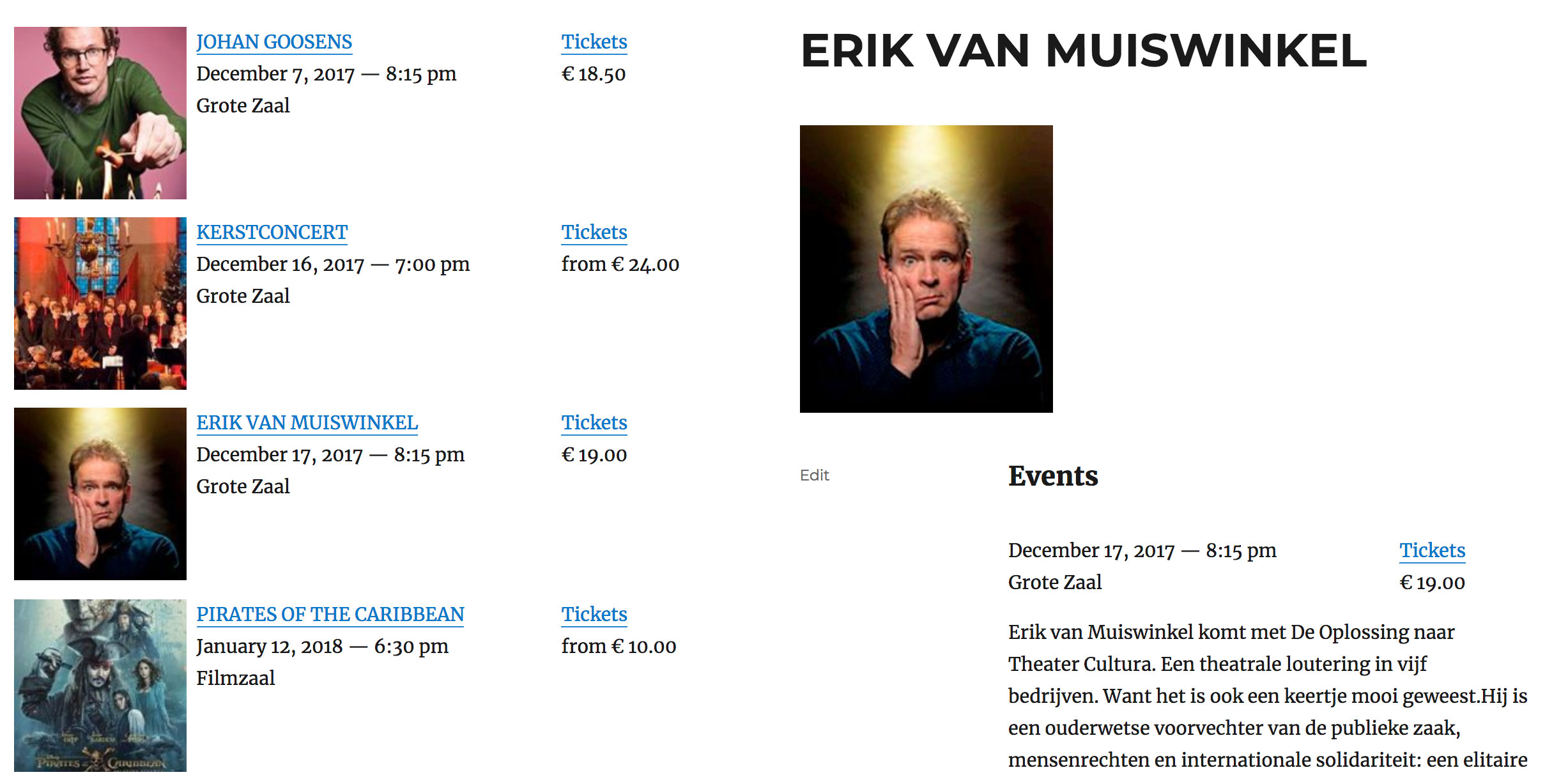
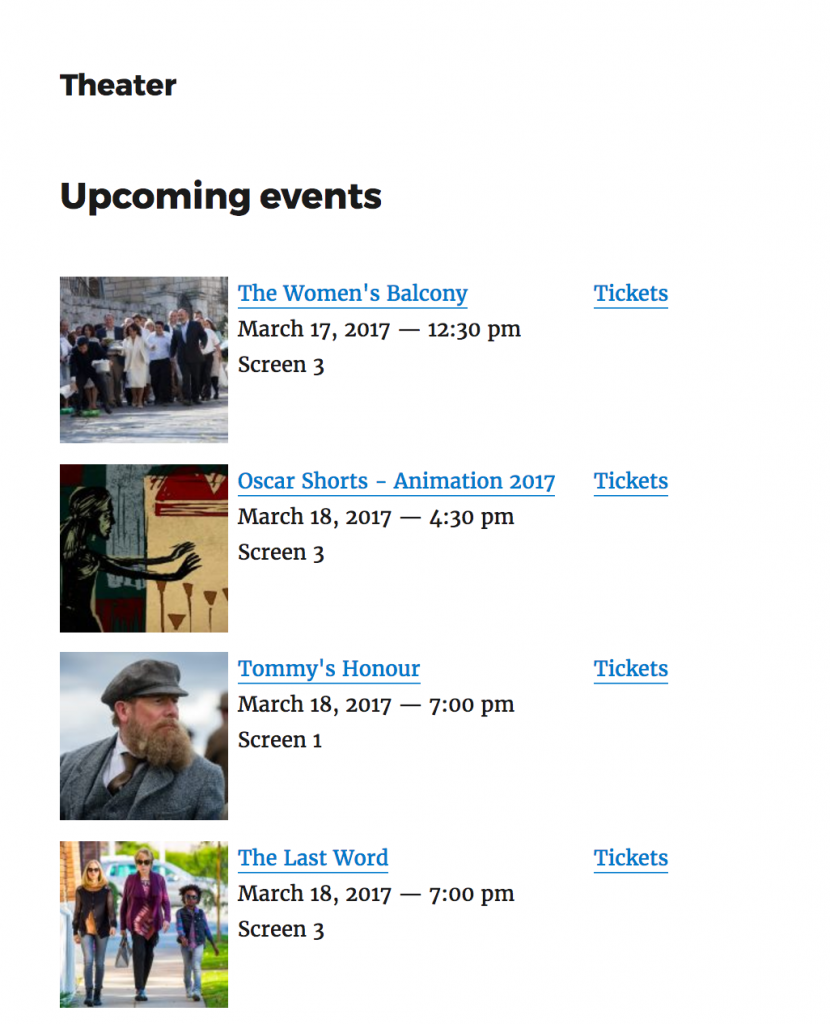
The page that you created now shows your upcoming events:
About LVP
LVP Reserveringssystemen is a software company specialized in event management and ticketing systems. TRS, their flagship product, is in active use by a large number of institutions in The Netherlands.
Automatically import your Stager events and sell them on your WordPress website.
With this extension to the Theater for WordPress plugin your Stager events and their promotional information are directly added to your WordPress website. Ticket sales takes place in the customizable and responsive ticket shop of Stager.
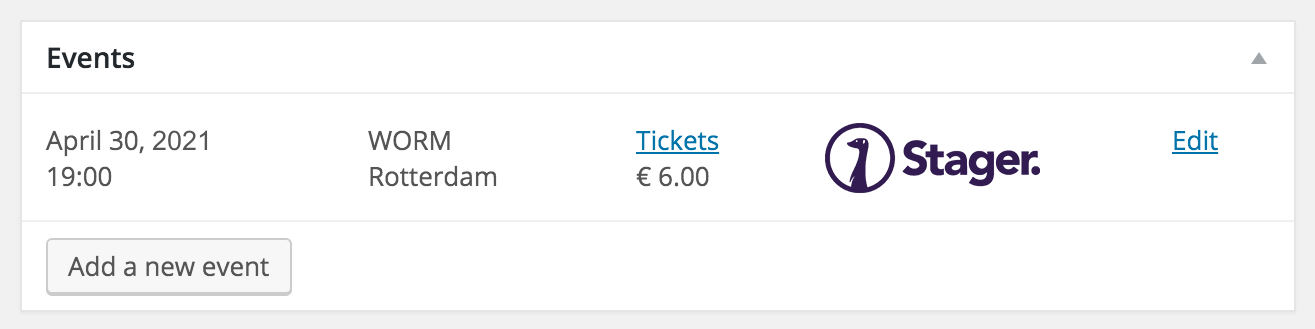
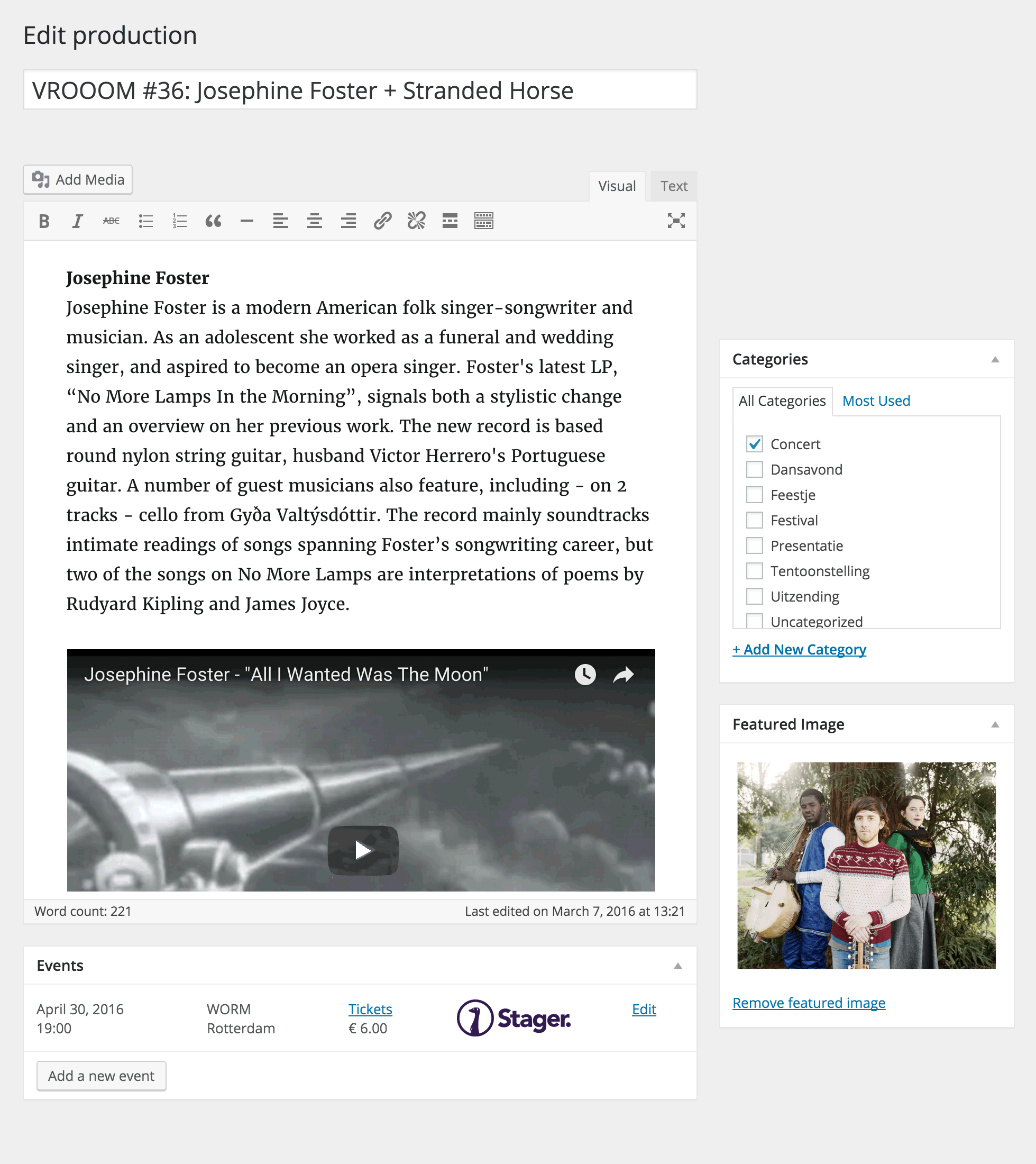
Your events are automatically imported from StagerPromotional information: Texts, featured image, categories and videos are imported from Stager and shown on your website
Enter your Stager Base URL and Token on the Stager tab in the Theater for WordPress settings and choose an interval for synchronisation (eg. 5 minutes).
Your events are now available in WordPress!
Stager
Stager Software offers a full force event management and ticketing solution that helps you with planning your events, finding the right crowd and selling a lot of tickets.
Import event information and setup your ticket sales with Stager. It happens automagically!
Free Digital Signage showcasing your Stager events?
Looking for a smart way to communicate your shows onsite, on digital screens at your entrance or bar? Meet Foyer – Digital Signage for WordPress, the free Digital Signage plugin that integrates with Stager!
Install Foyer to your website and effortlessly create an automatically up-to-date slide show displaying your upcoming shows. Check out this demo slide show, or read more about Foyer now.
Generate an access token in the Veezi Back Office and enter it in the Access Token field.
Save your settings.
Go to Theater → Events.
You now see an overview of all your films:
At this point, all your films are still saved as drafts. You can now edit your films, add extra information (eg. a featured image, video trailers of reviews) and publish them.
Show your events
You can show your upcoming films on a page.
Go to Pages → Add new.
Give your page a title (eg. ‘Upcoming events’).
Click on Publish.
Go to Theater → Settings → Display.
Set Page to show upcoming events on to the page that you just created.
Set Position on page to show above content.
Scroll down to the Dates on event pages section.
Set Position on page to show above content over here as well.
Click on Save Changes.
Go to Theater → Settings → Style.
Check Enable built-in Theater stylesheet.
Click on Save Changes.
The page that you created now shows your upcoming films:
About Veezi
Veezi is a constantly evolving cinema management and ticketing solution for independent cinemas. Engineered by Vista, the world’s leading cinema software provider.